Private, offline expense tracking
Track your spending and scan receipts. AI fills in the details on your phone, not on a server.



No account No ads No tracking No subscriptions
Add expenses five ways. Four fill in the details for you.
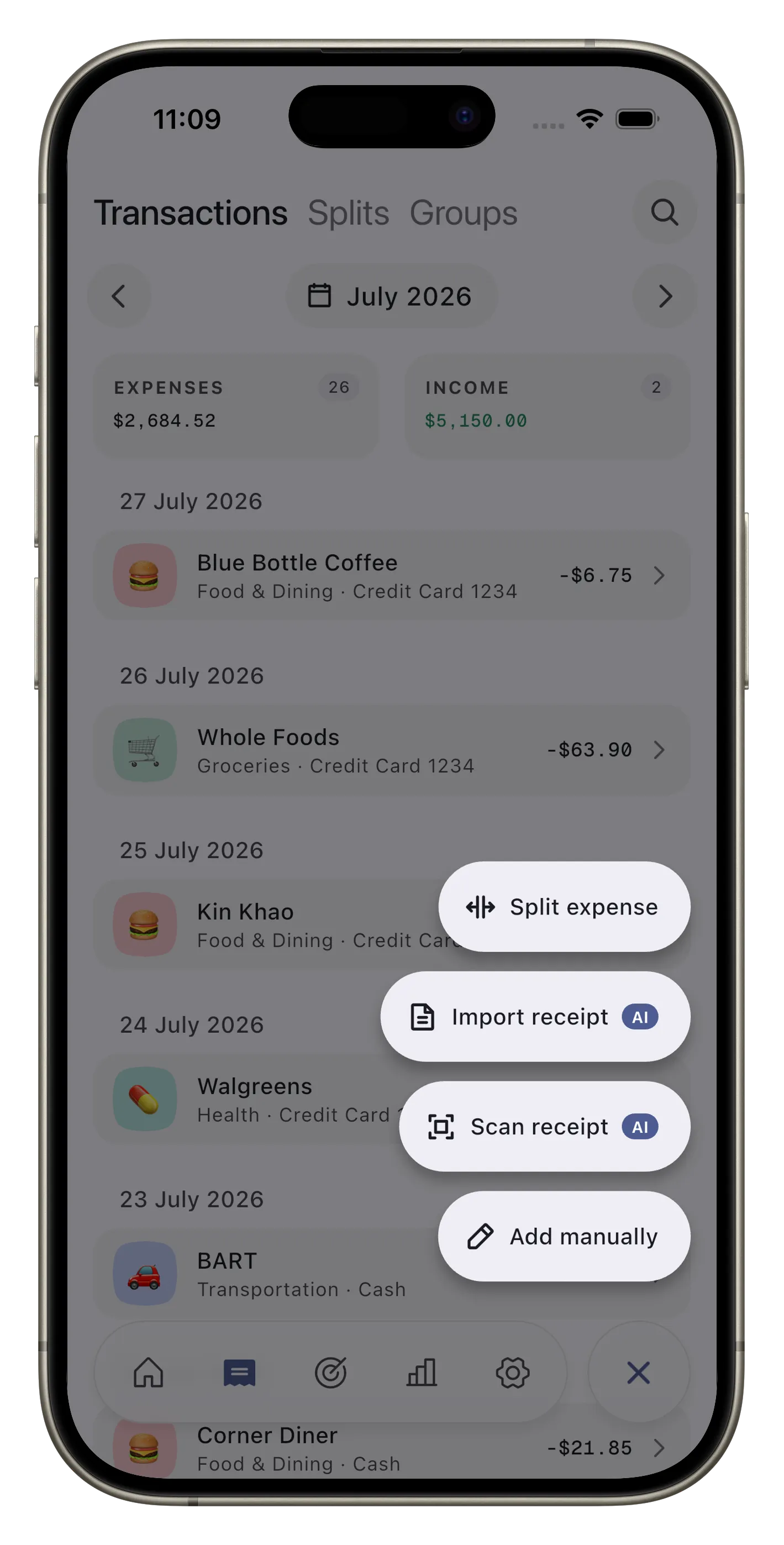
Enter an expense yourself, or let Expensed read a receipt or purchase notification and create a draft. It saves automatically only when both the account and currency are certain. Every other draft waits for your review.
-
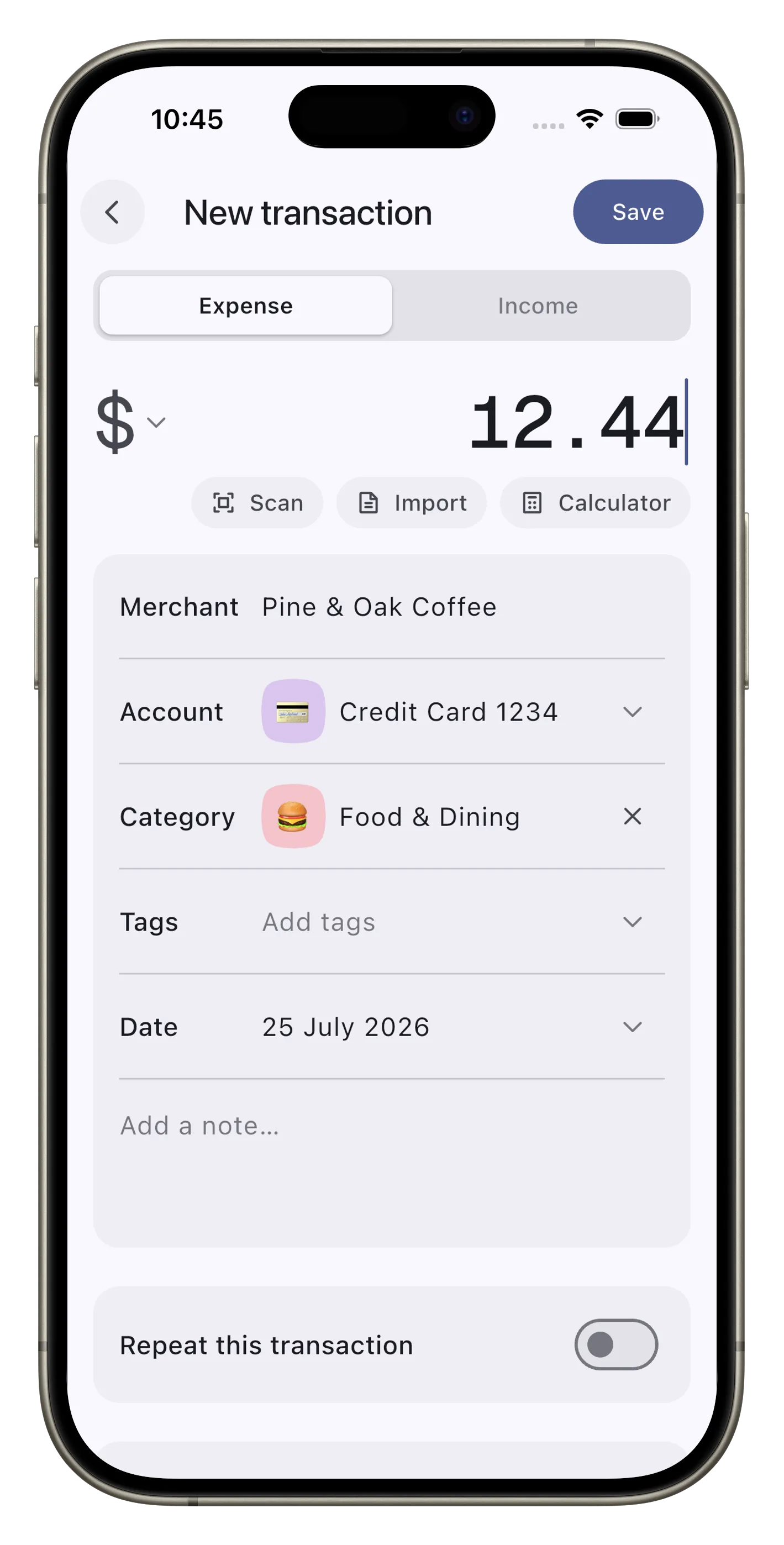
01 Type it in
Enter the details in a quick form. The amount field includes a calculator, so you can add up a bill without leaving the app.
-
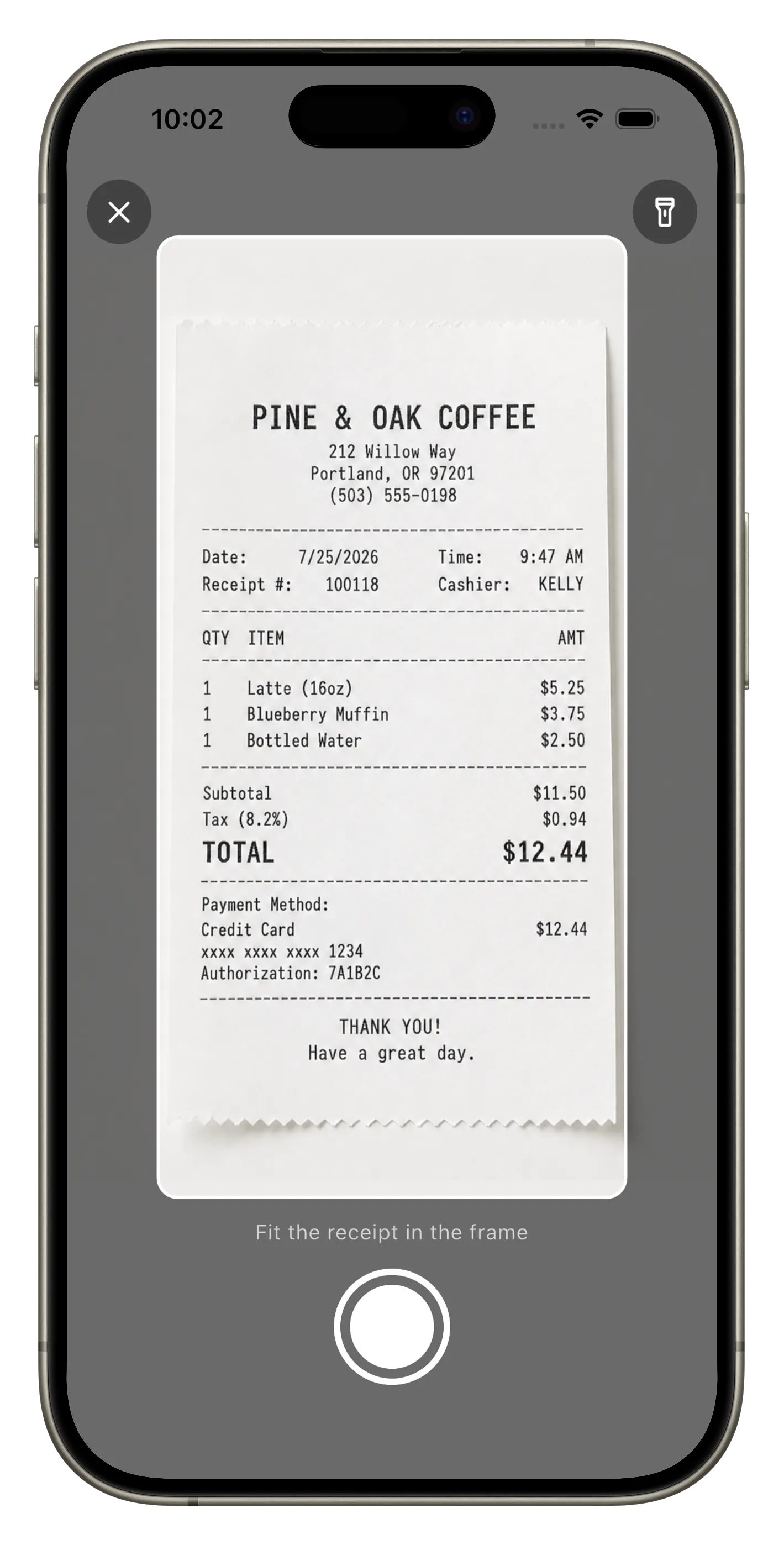
02 Scan a receipt
Point the camera at a receipt. Expensed crops it, straightens it, and reads it on your phone.
-
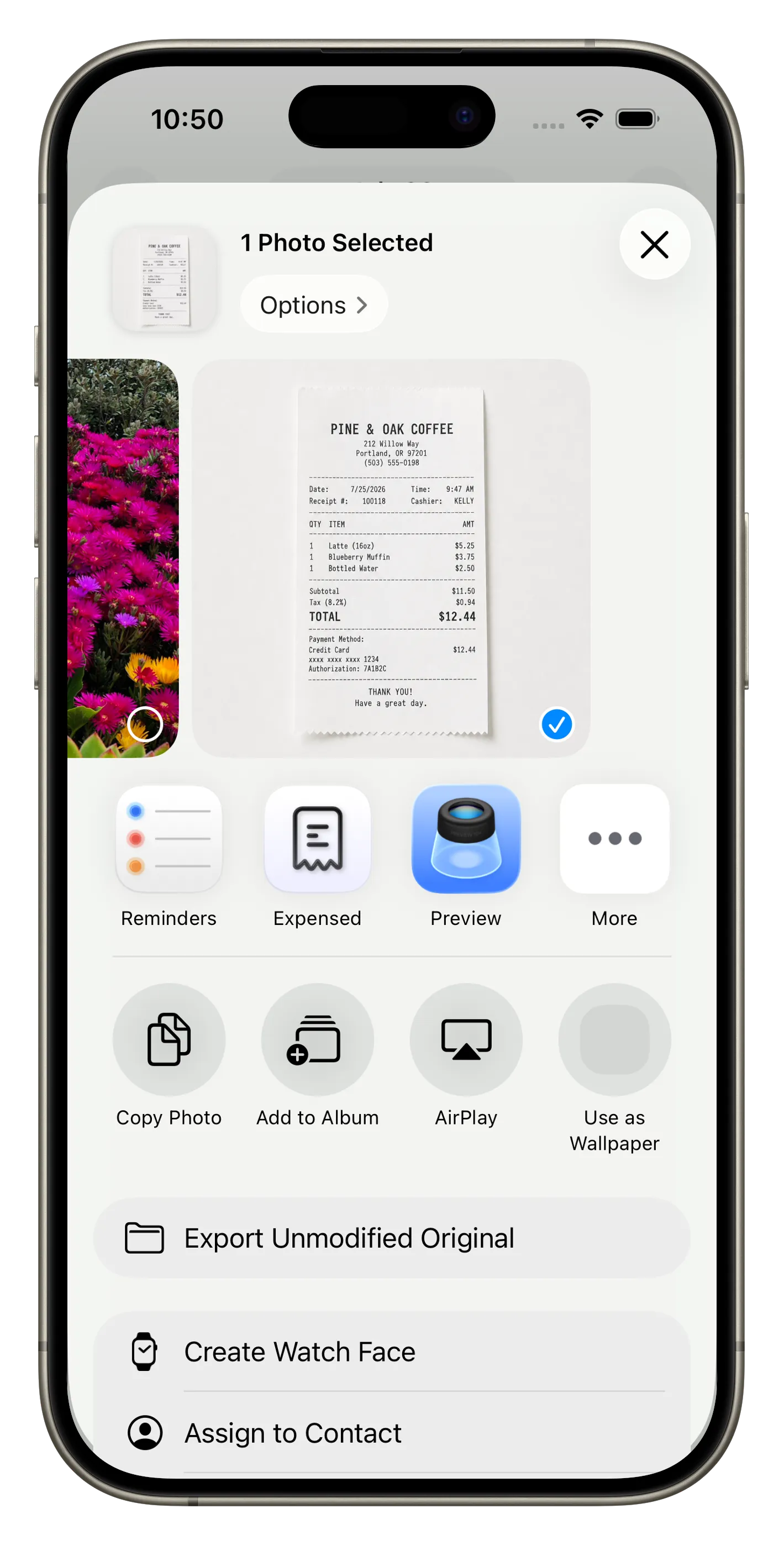
03 Share a receipt
Send a receipt photo or PDF to Expensed from Photos, Files, your email, or your bank's app. Share several receipts and each becomes its own draft.
-
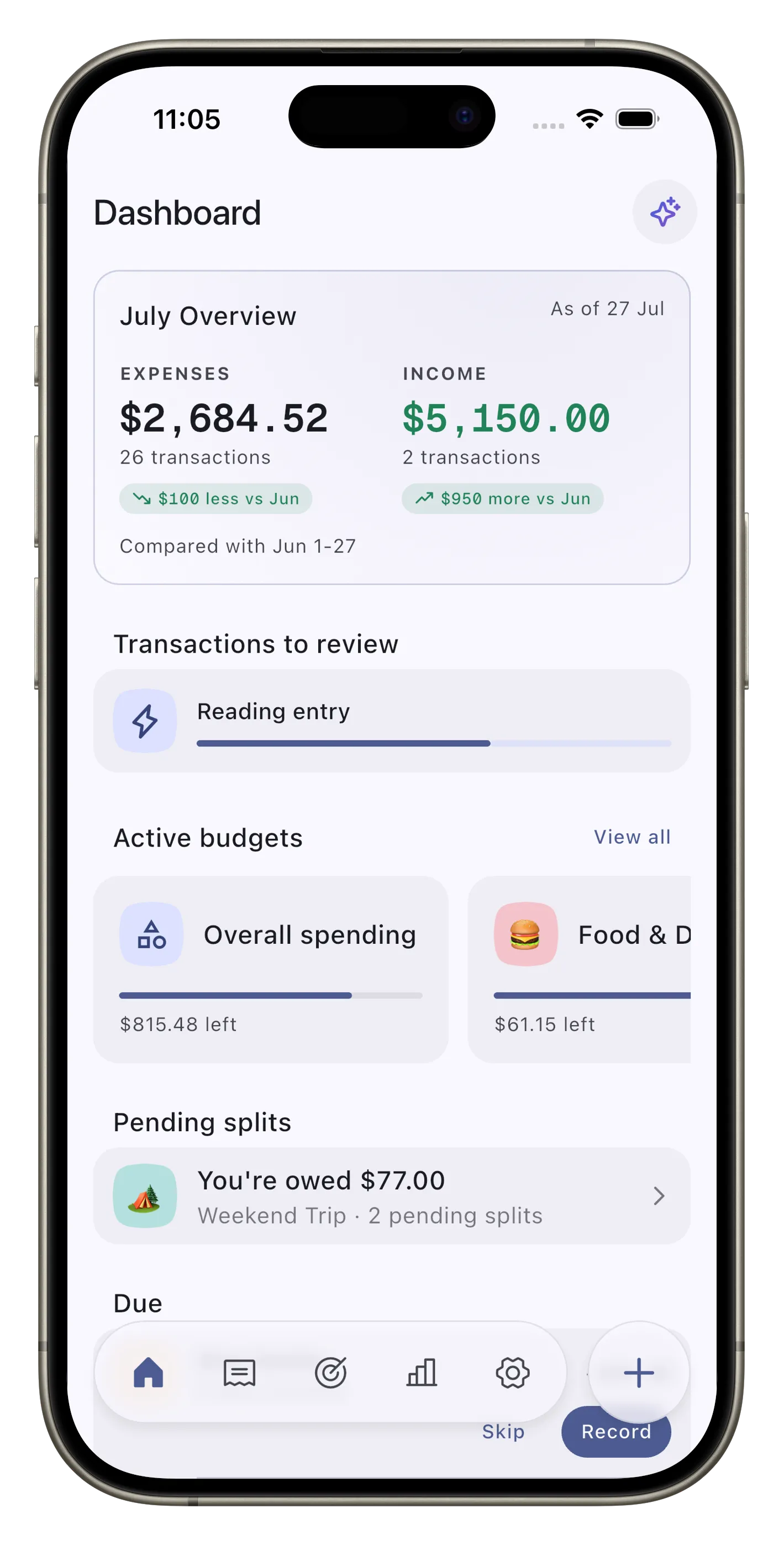
04 Capture a purchase automatically iOS and Android
Google Wallet notifications on Android and a Log Expense Shortcut on iOS capture the purchase. Expensed processes it when you next open the app.
-
05 Import a file
Add a receipt photo or PDF you already have.
-
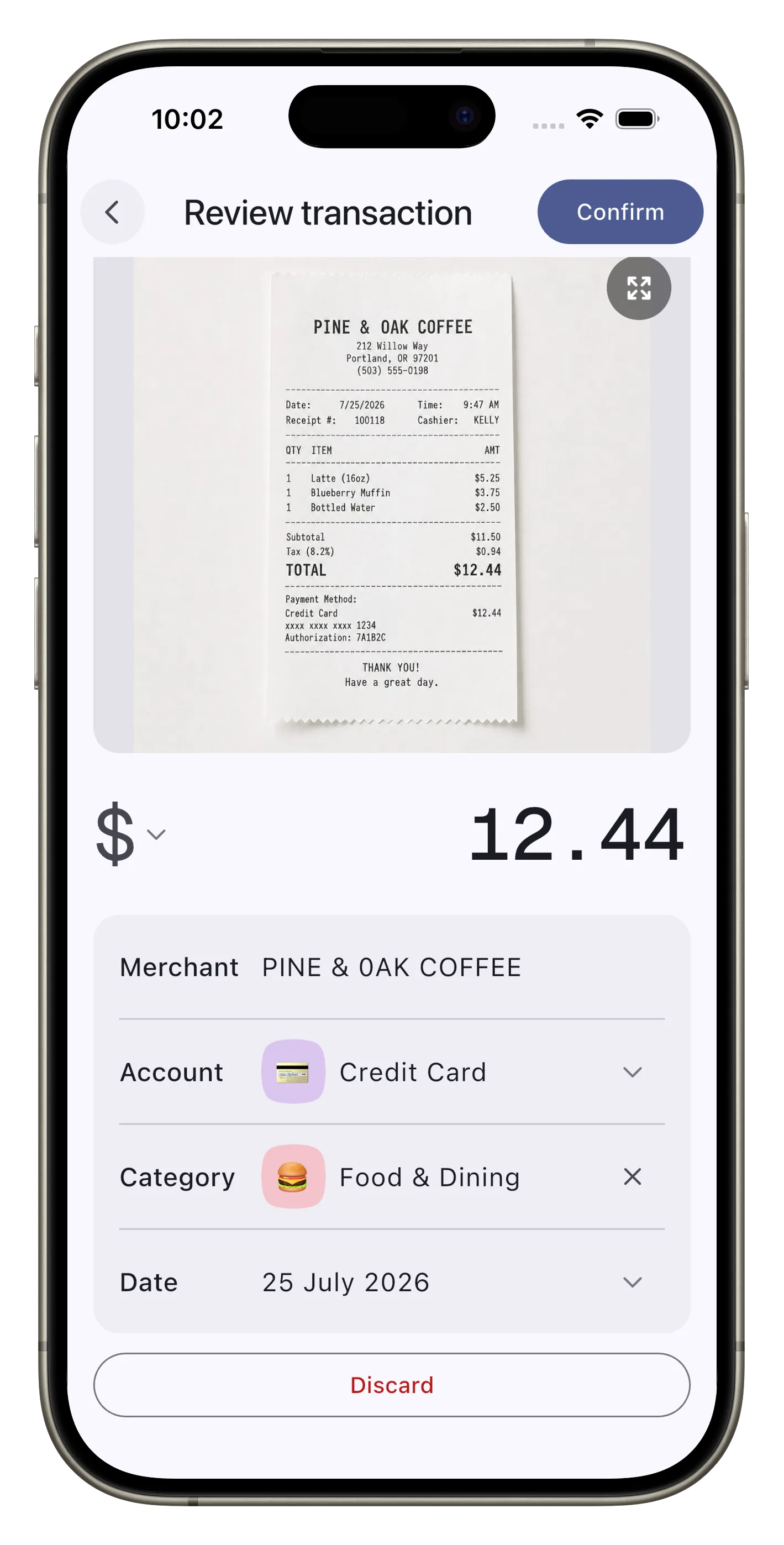
06 Review the draft
When Expensed needs your review, compare the source with the draft, then choose Confirm or Discard. Nothing is saved until you confirm it.
01 / 06
The AI runs on your phone.
Expensed reads receipts and fills in the details on your phone. Your financial data is not sent to a remote AI service. Anything Expensed is unsure about waits for your review.
-
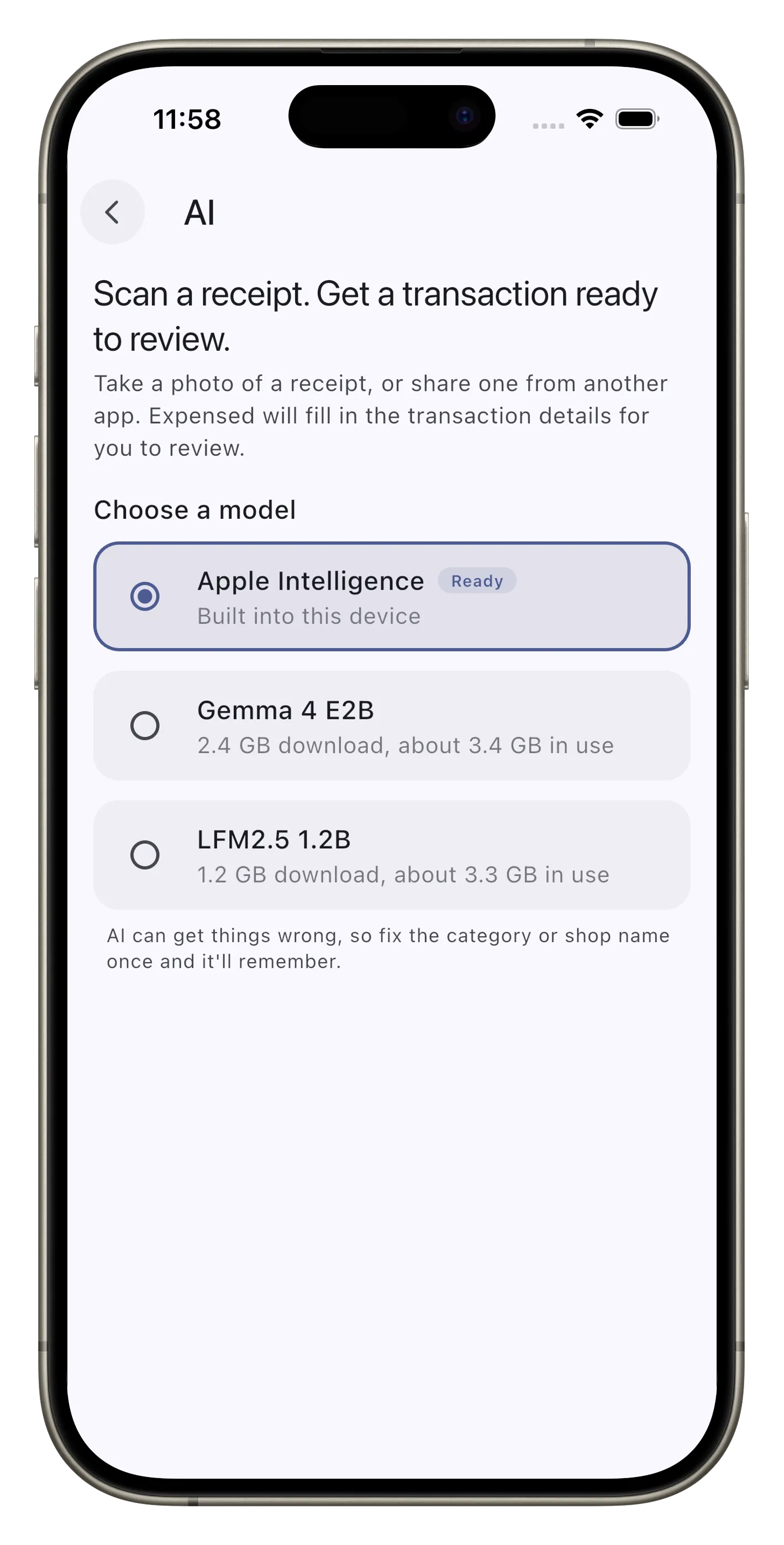
Choose your AI
Supported iPhones and iPads use Apple Intelligence. Supported Android phones use Gemini Nano. If your device has neither, you can download another on-device model instead. The rest of Expensed works without any model.
-
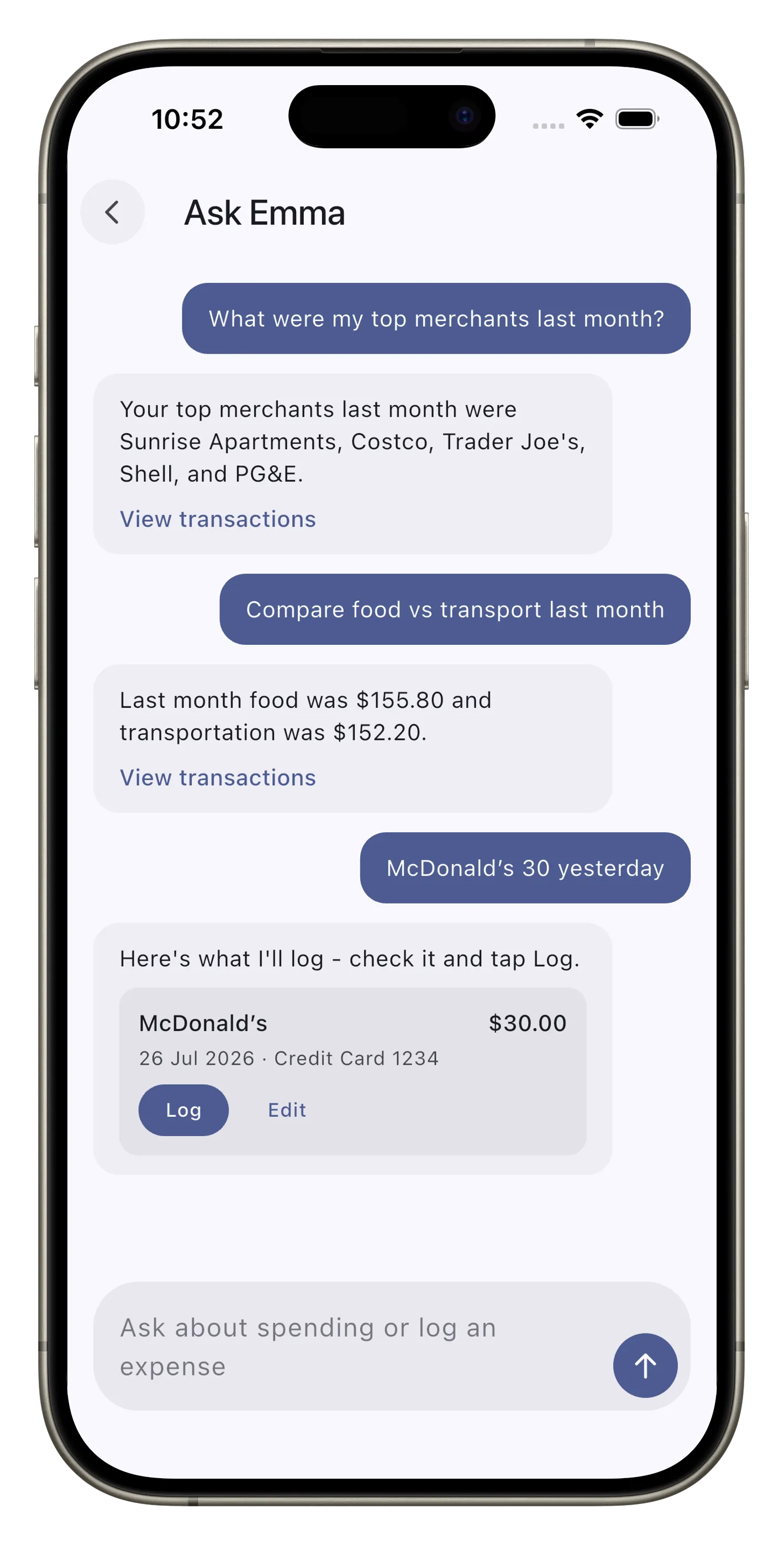
Ask Emma
Ask about your spending. Emma answers on your phone and links to the transactions behind each answer.
Everything else Expensed can do.
Stats and breakdowns
Explore any date range by category, account, merchant, or tag, then open the matching transactions.
Budgets
Set weekly or monthly limits for all spending or one category, with alerts as you get close.
Split expenses
Split equally or by amount, percentage, shares, or items. Only your settled share appears in your totals.
Recurring rules
Schedule expenses daily, weekly, monthly, or yearly, then record them from the home screen when due.
And many more features.
Common questions.
Do I need an account?
No. There is no sign-up, no password, and no profile anywhere in the app. You install it and start tracking.
Does it work offline?
Yes. Adding expenses, searching, budgets, splits, and stats all work with no connection. The app goes online for three things only: downloading an AI model once if you choose to install one, refreshing exchange rates weekly if you want that, and cloud backup if you turn it on. None of those send your transactions, and none of them are needed for day-to-day tracking.
Are my receipts uploaded anywhere?
No. Reading the text and drafting the transaction both happen on your phone. Receipts leave it only if you export them or turn on cloud backup yourself.
Can Expensed see my bank account?
No. There are no bank connections of any kind. Expenses come from you, from a receipt, or from a purchase notification your phone already received.
Do I have to download an AI model?
Only if your phone lacks built-in AI. Recent high-end phones with Apple Intelligence or Gemini Nano have nothing to install. On other phones, you can download one of two models instead, 1.2 GB or 2.4 GB. Everything except the AI features works without one.
What details can Expensed fill in?
Amount, merchant, date, category, and the account you paid from. Categories and accounts come from your own lists, never made up. The account is only filled in when the receipt or the notification says which one it was, usually by card brand or the last few digits. If two of your accounts could both fit, it is left empty rather than guessed.
Will Expensed read every receipt correctly?
No. Phones differ and receipts differ a lot, so anything Expensed reads arrives as a draft you check before it is saved.
What kinds of budget can I set?
Weekly or monthly, on your overall spending or on one category, and it can warn you as you get close as well as when you go over. Change the amount later and the periods that already ran keep the limit they were judged against, so your history stays honest.
How does splitting a bill work?
Divide it equally, by exact amounts, by percentage, by shares, or item by item with service charge and tax on top. A pending split stays out of your transactions entirely, so it does not move your balances or budgets. Settling it adds one expense, your share, and undoing that removes it again.
Do the people I split with need the app?
No, and they cannot join. Everything stays on your phone: the people in a split are names you type, with no accounts and nothing syncing between you. You can send them a plain summary of who owes what.
Is Expensed free?
Tracking your expenses is free, and so are budgets and splits. There is one optional purchase that adds scheduled cloud backup to your own iCloud Drive or Google Drive. You pay for it once, and there is no subscription.
Expense tracking that stays on your phone.
Free to use, with no account to create. Your spending stays on your phone unless you turn on cloud backup.